
Short answer: MT4, or MetaTrader 4, is trading software launched by MetaQuotes in 2005. You use it to view charts, analyse prices and send buy and sell orders for forex, gold and other markets through a provider (broker). It's free on computers and phones. The basic steps: download it from your provider, log in, set up your chart, then press F9 to open a trade, always entering a lot size, stop-loss and take-profit.
MT4 has been the most widely used forex platform for nearly 20 years, and many automated systems (EAs) and copy trading services still support it, even though MT5 now exists (see the differences in MT4 vs MT5). Its screen full of windows leaves many beginners unsure where to start.
This guide goes step by step, from installing to your first trade, with settings that make charts easier to read and reduce costly mistakes.
What MT4 can do
Feature | Details |
|---|---|
Price charts | Candlestick, bar and line charts across 9 timeframes, from M1 to MN (monthly) |
Technical analysis | 30 built-in indicators plus drawing tools such as trendlines and Fibonacci |
Orders | Market orders and 4 pending order types, with stop-loss / take-profit |
Automated trading | EAs written in MQL4, tested with the Strategy Tester |
Mobile | MT4 apps for iOS and Android for charts and orders |
MT4 isn't a broker and doesn't hold your money. Your money stays with the provider you opened an account with; MT4 is just software that connects to that provider's server.
Step 1: Download and log in
Download only from trusted sources: the link on your provider's official website, or the App Store / Google Play where the developer is MetaQuotes. Beware of installers sent over chat apps or unfamiliar links
Open an account with a provider (beginners should start with a demo; see Forex demo accounts)
Log in via File → Login to Trade Account, entering your account number, password and the exact server name your provider gave you
Check the connection: the bottom-right corner should show a connection speed. If it says "No connection" or "Invalid account", recheck the server name and password
The two passwords you need to know
Password | What it allows | When to use it |
|---|---|---|
Master password | Full access: view the account and trade | Only you. Never share it |
Investor password | View-only: see the account and trade history, no trading | Let someone check your results, e.g. a coach reviewing your trades |
If anyone asks for your master password to "trade for you", treat it as a red flag.
Step 2: Get to know the MT4 screen
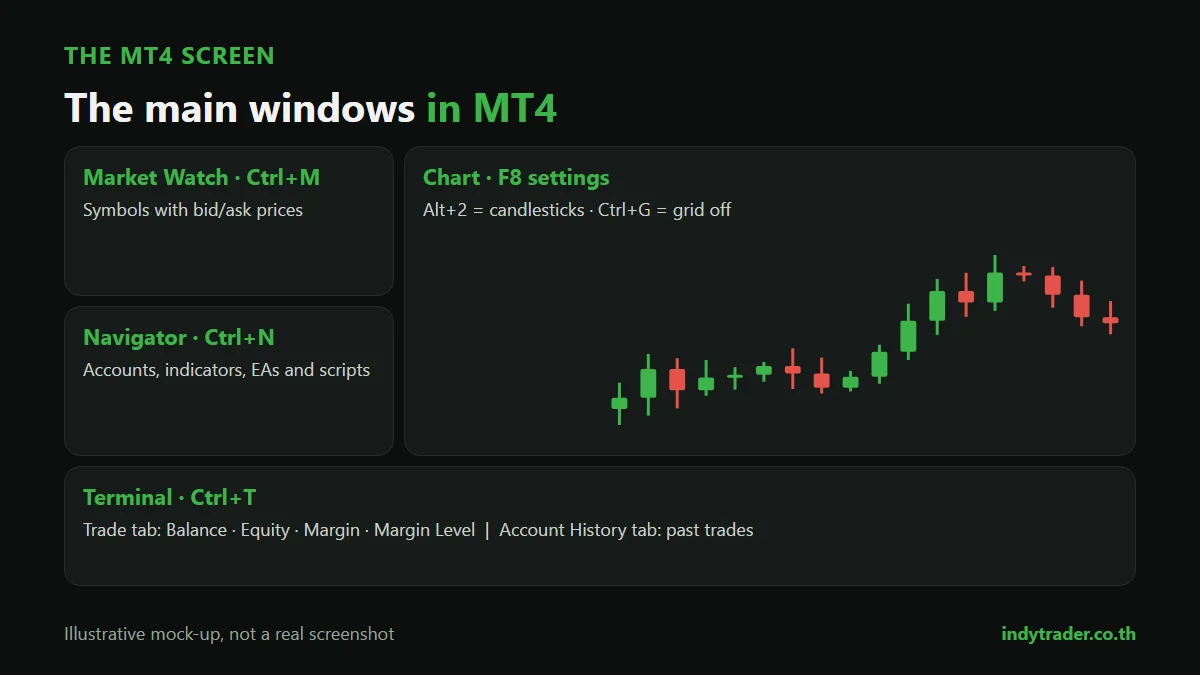
Window | Shortcut | What it's for |
|---|---|---|
Market Watch | Ctrl + M | Symbols with bid/ask prices. Right-click → "Show All" to see every symbol, or Specification for the contract size |
Navigator | Ctrl + N | Accounts, indicators, EAs and scripts; drag them onto a chart |
Terminal | Ctrl + T | Trade tab (open trades, balance, margin) and Account History tab |
Data Window | Ctrl + D | Open/high/low/close of the candle under your mouse |
Chart | — | The main area for viewing price and drawing tools |
In the Trade tab, always check Balance (money in the account excluding open trades), Equity (value including open trades), Margin (money set aside) and Margin Level. If margin level falls close to your provider's stop-out level, trades are closed automatically.
Step 3: Set up charts that are easy to read
Open a new chart: right-click a symbol in Market Watch → Chart Window
Switch to candlesticks: press Alt + 2 (Alt + 1 = bar chart, Alt + 3 = line chart)
Set colours: press F8 → Colors tab and choose clearly different colours for bull and bear candles
Turn off the grid: press Ctrl + G to make candles easier to see
Show the ask line: F8 → Common tab → tick Show Ask line, because MT4 charts show the bid price by default. Buy orders fill at the ask, which is higher than the bid by the spread
Choose a timeframe from the toolbar: M1, M5, M15, M30, H1, H4, D1, W1, MN
Save a template: right-click the chart → Template → Save Template to apply the same settings to other charts instantly
If you can't read candlesticks fluently yet, see How to read candlestick charts and How to read forex charts.
Step 4: Add indicators and drawing tools
Add an indicator: Insert → Indicators, or drag one from the Navigator onto the chart, such as a Moving Average or RSI
Draw horizontal lines, trendlines and Fibonacci from the Line Studies toolbar
Delete objects: right-click the chart → Objects List (Ctrl + B), select and press Delete
Beginners shouldn't put more than 2–3 indicators on one chart; their signals conflict and slow your decisions.
Step 5: Place your first trade
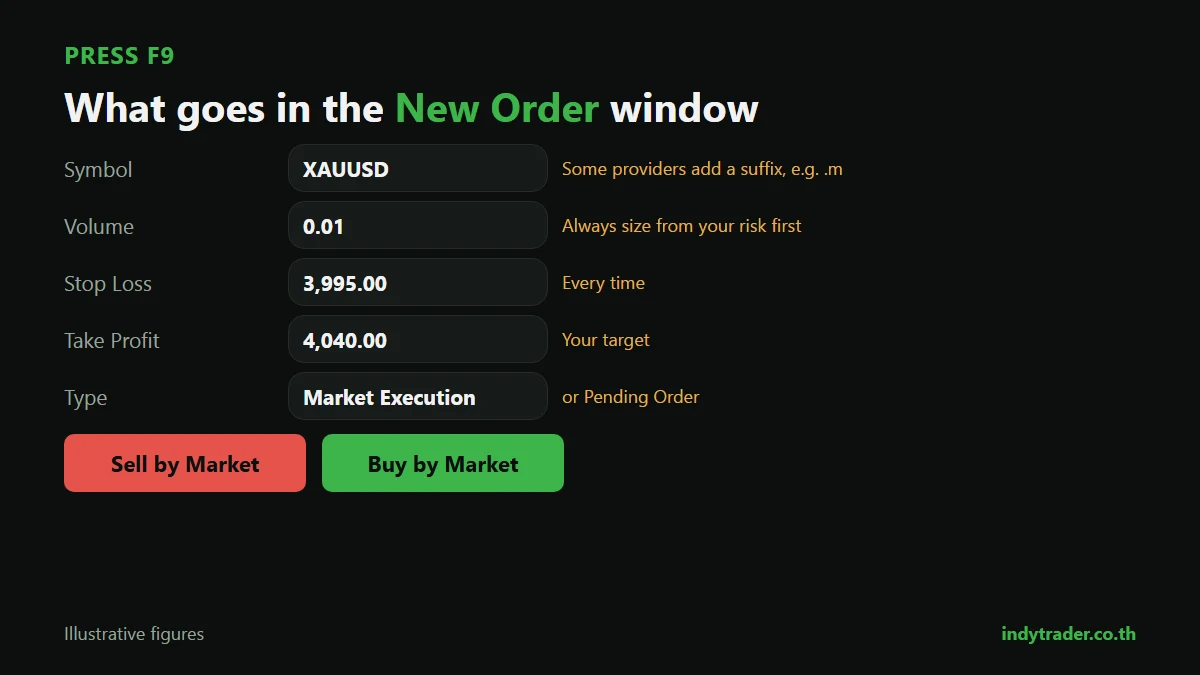
Press F9 or double-click a symbol in Market Watch to open the New Order window.
Field | What to enter |
|---|---|
Symbol | The market to trade, e.g. EURUSD or XAUUSD (some providers add a suffix such as XAUUSD.m) |
Volume | Lot size, e.g. 0.01, always calculated from your risk first (see Lot size and Gold lot size) |
Stop Loss | The price to cut the loss. Enter it every time |
Take Profit | The price to take profit |
Type | Market Execution (enter now) or Pending Order |
Then click Sell by Market or Buy by Market. The trade appears in the Terminal's Trade tab.
The 4 pending order types
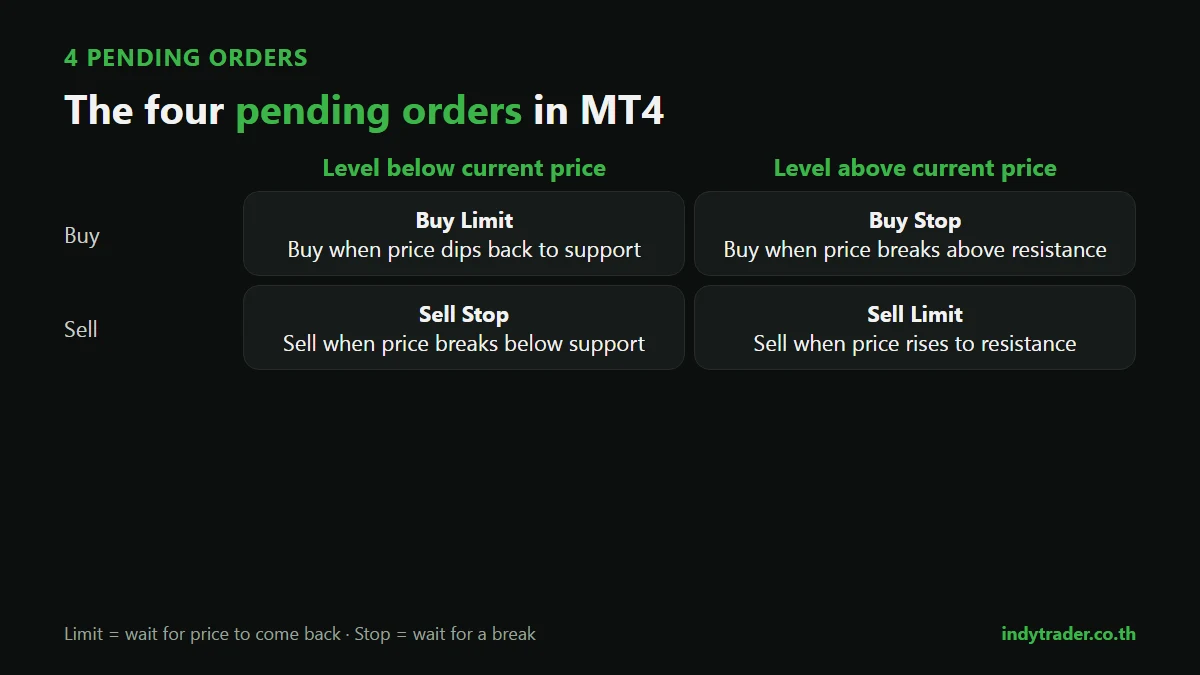
Order | Use when | Example |
|---|---|---|
Buy Limit | You want to buy below the current price | Buy when price dips back to support |
Sell Limit | You want to sell above the current price | Sell when price rises to resistance |
Buy Stop | You want to buy when price breaks above a higher level | Buy on a break of resistance |
Sell Stop | You want to sell when price breaks below a lower level | Sell on a break of support |
Modifying and closing trades
Change stop-loss / take-profit: double-click the trade in the Trade tab → Modify, or drag the SL/TP lines on the chart
Close a trade: double-click it and press the yellow Close button, or click the × at the end of the row in the Trade tab
Trailing stop: right-click the trade → Trailing Stop to move the stop-loss as price moves in your favour. In MT4 this only works while the software is running on your computer
MT4 on mobile versus computer
Computer | Mobile | |
|---|---|---|
Chart analysis | Full, several charts at once | Possible, but small screen and harder drawing |
Indicators | Can install more | Only those built into the app |
EAs / automation | Yes | No |
Best for | Analysis and planning | Monitoring and adjusting trades during the day |
Many traders plan on a computer, set pending orders, then monitor on their phone during the day.
MT4 shortcuts worth remembering
Key | Action |
|---|---|
F9 | New order window |
F8 | Chart properties |
Alt + 1 / 2 / 3 | Bar / candlestick / line chart |
Ctrl + M / N / T | Market Watch / Navigator / Terminal |
Ctrl + G | Grid on/off |
+ / − | Zoom in / out |
6 beginner mistakes on MT4
Trading without a stop-loss. One big news move can cost more than you can afford
Mistyping the lot size, e.g. meaning 0.01 but typing 0.1 or 1.00. Check the Volume field before every click
Forgetting the chart shows the bid. A buy's take-profit and a sell's stop-loss trigger on the ask, so they can be hit before the chart's price line touches them
Stacking trades in one direction without adding up risk. Three trades at 1% each is 3% total risk
Downloading MT4 from unknown links, risking both your login details and your money
Going live before you're fluent. Practise on a demo until opening, closing and modifying orders is automatic
Before every live trade, use a pre-trade checklist and control risk with risk management.
Summary
MT4 is free software for charts and orders through a provider. Download it from an official source, log in to a demo account, set up candlestick charts with the ask line, then practise opening trades with F9, always entering a calculated lot size, stop-loss and take-profit. Only go live once you're fluent. For automated trading on MT4, read What is an EA.
Learn MT4 with a coach from day one
The Road to Trader course for beginners, taught by founder Coach Beer, covers forex basics, trading mindset, key terms such as pips, lots, leverage and margin, the MT4 platform and the Indy System Trade method, with access to the Indy Trader community.
Frequently asked questions
What is MT4?
MT4, or MetaTrader 4, is trading software from MetaQuotes for viewing charts, analysing prices and placing buy and sell orders for forex, gold and other markets through a provider. It's free on computers and phones.
Is MT4 free?
The software is free. Trading costs come from your provider, such as spreads, commissions and swaps.
Where do I open an MT4 account?
MT4 doesn't open accounts itself. Open an account with a provider that supports MT4, then log in with the account number, password and server name they give you.
Why can't I open a trade in MT4?
Common causes: you logged in with the view-only investor password, the market is closed, you don't have enough margin, the lot size is below the minimum, or (for EAs) the AutoTrading button is off.
Can I run an EA on MT4 mobile?
No. EAs run only on the desktop version of MT4 or on a VPS. The mobile app is for charts and managing trades.
By the Indy Trader team. Indy Trader is a forex and gold trading academy founded in 2012 by Coach Beer (Tithivat Huayhongtong).
Risk warning: Forex and gold trading carry a high level of risk and you may lose some or all of your capital. This article explains how to use software and is not investment advice.
